Title here
Summary here


Tutorial on writing a Microblaze software application using Xilinx SDK 13.1
June 28, 20114 minutes
In the previous tutorial titled Creating a project using Base System Builder, we used the Embedded Development Kit (EDK) to create a hardware design composed of IP cores and a Microblaze soft processor. In this tutorial, we will complete the design by writing a software application to run on the Microblaze processor. In version 13.1, this is done using the Software Development Kit (SDK) and it is no longer “doable” in the EDK. To keep things simple, we’ll start off with a “hello world” application and then move onto one that will communicate with our peripherals. Specifically, we will read the DIP switch settings and display them on the terminal screen using printfs.
To perform this tutorial, you will need:
If you didn’t do the previous tutorial about creating an EDK hardware project, you will at least need to download the project files for your specific board and build the project in EDK. Find the project files at the end of the tutorial here.
C:\ML509\Projects\base-system-v13-1\edk folder and build the bitstream as done in the tutorial. Note, it doesn’t have to be in C-drive and it doesn’t have to be in the ML509/Projects folder, but above this, try to use the same folder structure as we do here.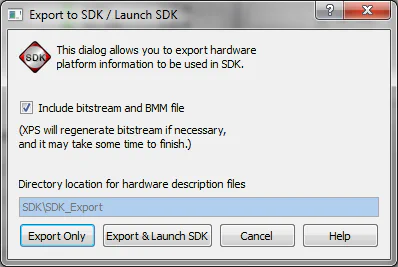
What are SDK Workspaces?
Think of the SDK workspace as a folder where you will manage the software application(s) for one particular EDK hardware design. You can place the workspace anywhere on your machine, but I personally like to organize my projects in a folder structure as follows:
- base-system-v13-1: The high-level folder that uses the name of my project.
- edk: The sub-folder with my EDK project files.
- sdk: The sub-folder with my SDK project files.
In the example above, my project name is “base-system-v13-1” which tells me its the base system project that I made using version 13.1 of the Xilinx suite.
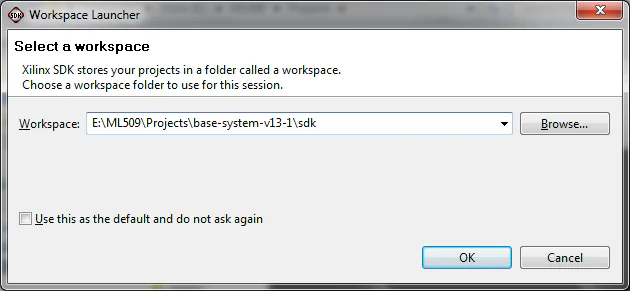
C:\ML509\Projects\base-system-v13-1\sdk for your SDK workspace and click OK.
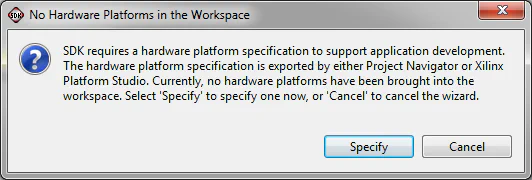
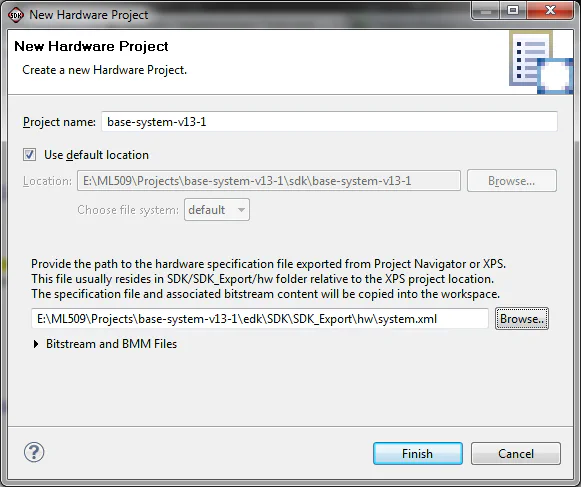
base-system-v13-1/edk/SDK/SDK_Export/hw/system.xml file. This file was created by EDK when we exported the project to SDK. If you cannot find this file, close SDK, open EDK and re-perform the “Export to SDK” step.
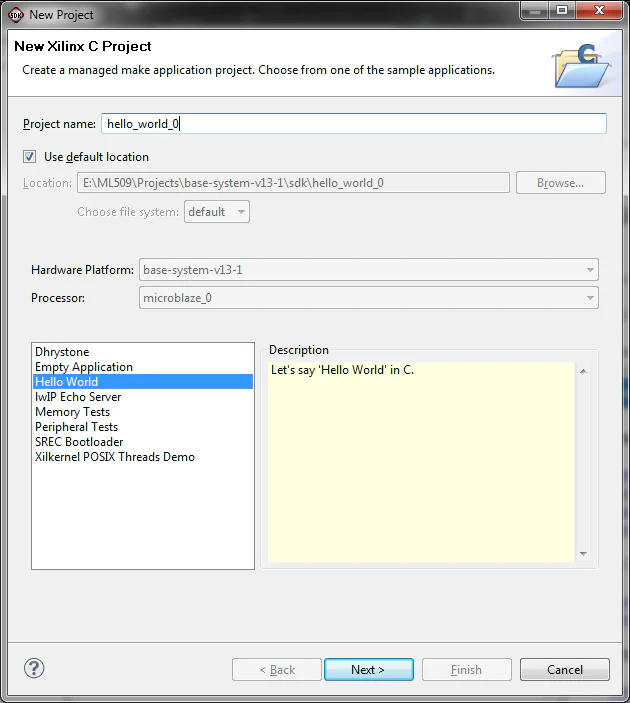
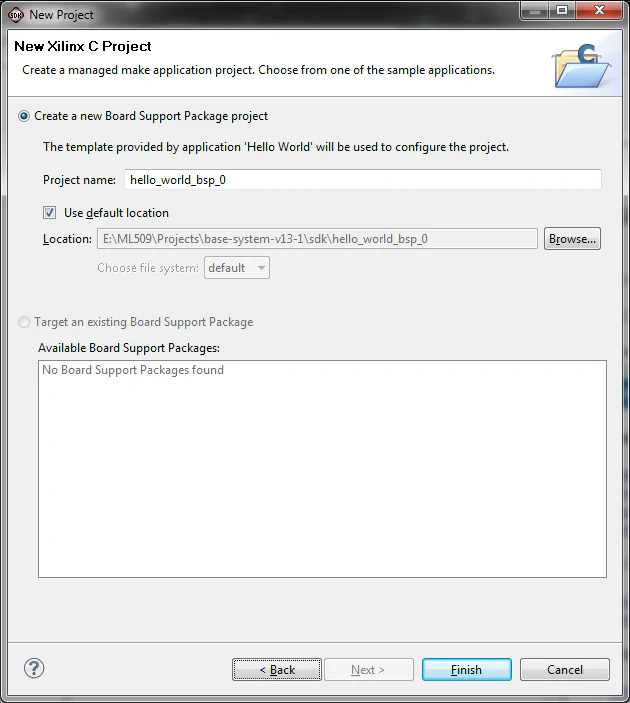
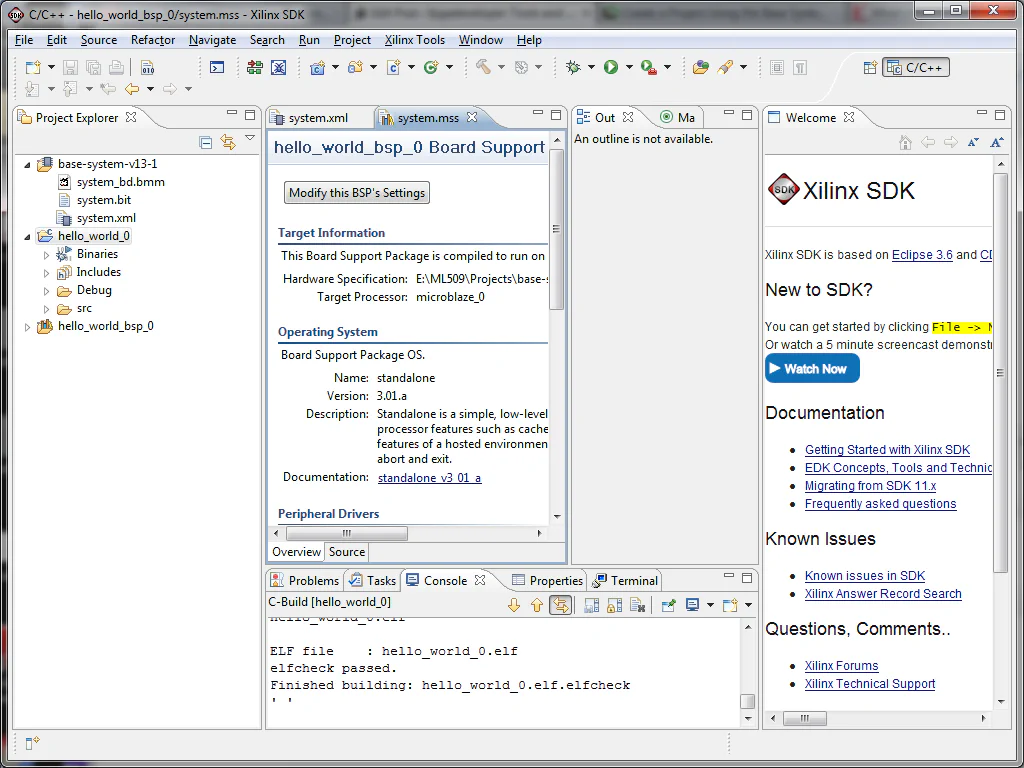
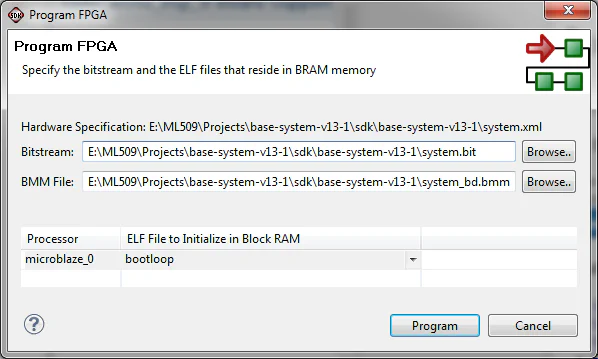
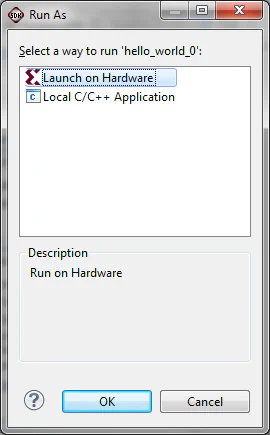
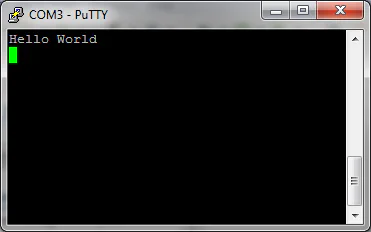
In the following tutorial, we will modify the template software application so that it reads from the DIP switch IP core to obtain the switch values and display them in the terminal window using printfs.