Title here
Summary here


Tutorial on reading DIP switches and displaying their state using a Microblaze C application
July 5, 20115 minutes
In the previous tutorial on using the SDK , we exported our base project from EDK to SDK and then we ran a simple software application that printed “Hello World” in the terminal window. In this tutorial, we will do something more useful than saying hello, instead we will illustrate the concept of communicating with a peripheral from C code running on the Microblaze. More specifically, we will read the DIP switch settings and display them on the terminal screen using printfs. Our C code will poll the switches constantly so that any change will be reflected in the terminal window.
To perform this tutorial, you will need:
You will also need to go through the previous tutorial about using SDK. You can continue here once you have the base system EDK project exported to SDK and a workspace already defined.
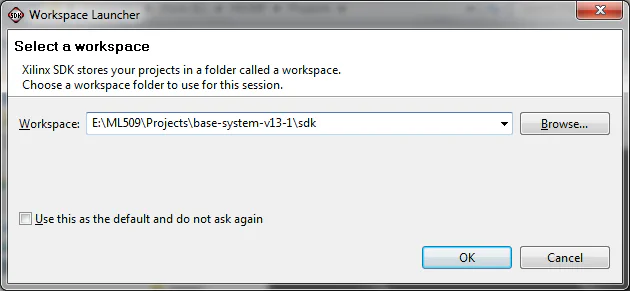
C:\ML509\Projects\base-system-v13-1\sdk for your SDK workspace and click OK.
hello_world C project in the Project Explorer. In SDK you can have multiple software projects (or applications) in the one workspace. In other words, one workspace can be used to manage several software applications for running on the same hardware platform. We want to create a new software application and write the code for it. Select “File->New->Xilinx C project”.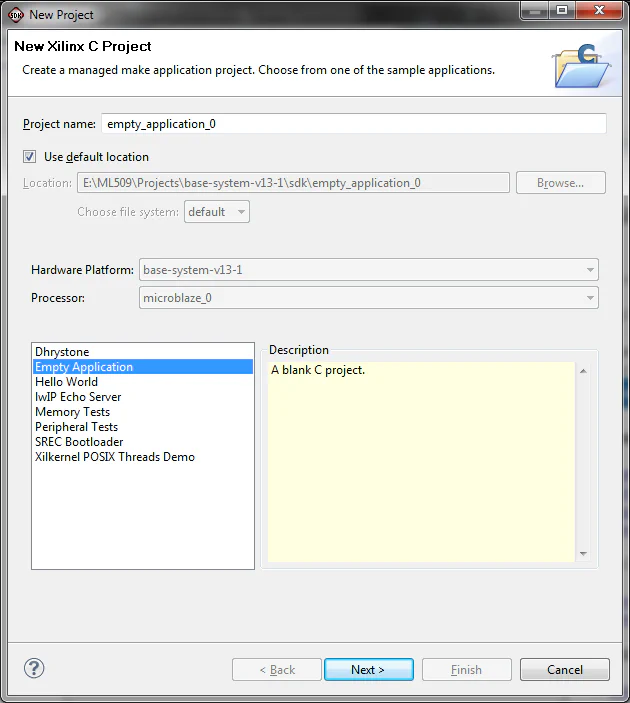
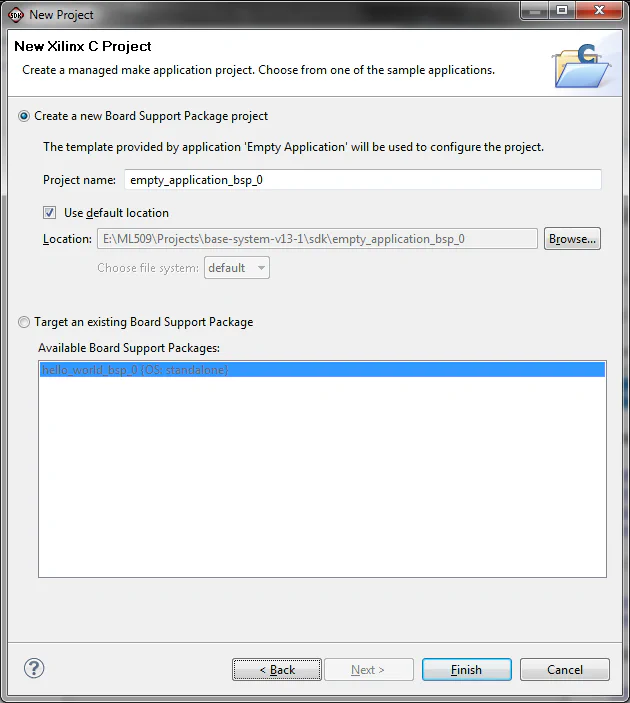
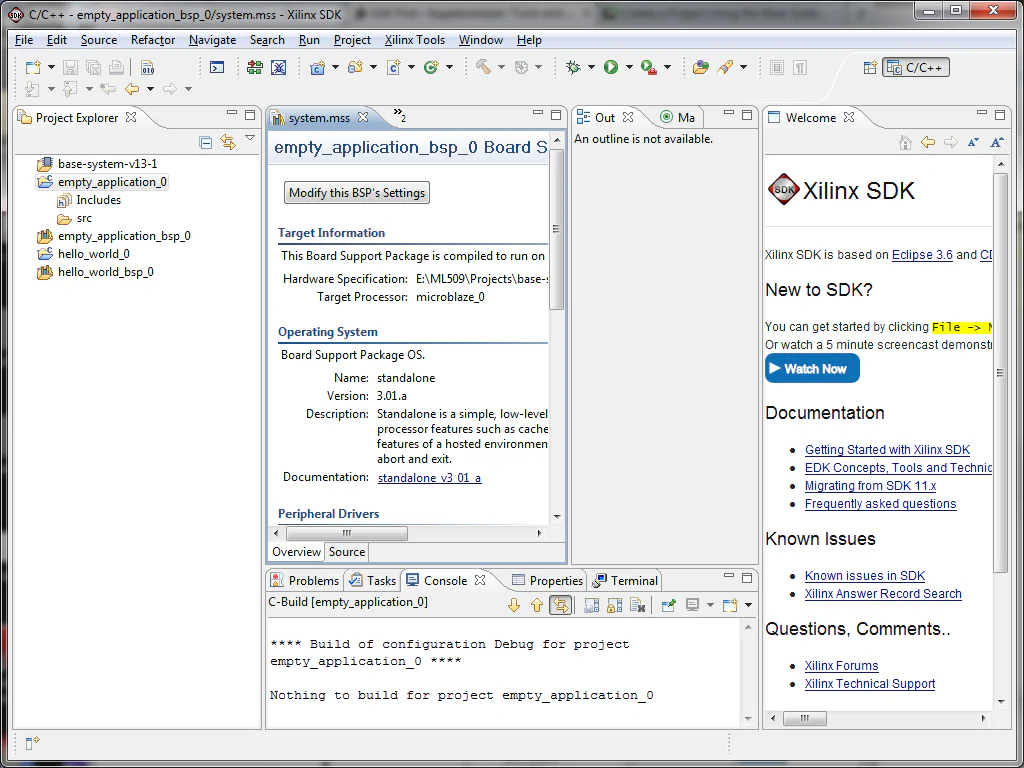
empty_application_0->src, you will see that there are no .c source files for the application. We have to write our own .c source file with the main function.
#include "xparameters.h"
#include "xbasic_types.h"
#include "xgpio.h"
#include "xstatus.h"

XGpio GpioOutput;
XGpio GpioInput;

int main (void) {

  Xuint32 status;
  Xuint32 DataRead;
  Xuint32 OldData;

  // Clear the screen
  xil_printf("%c[2J",27);

  // Initialize the GPIO driver so that it's ready to use,
  status = XGpio_Initialize(&GpioOutput,
                                 XPAR_LEDS_8BIT_DEVICE_ID);
  if (status != XST_SUCCESS)
    return XST_FAILURE;
  // Set the direction for all signals to be outputs
  XGpio_SetDataDirection(&GpioOutput, 1, 0x0);

  // Initialize the GPIO driver so that it's ready to use,
  status = XGpio_Initialize(&GpioInput,
                         XPAR_DIP_SWITCHES_8BIT_DEVICE_ID);
  if (status != XST_SUCCESS)
    return XST_FAILURE;
  // Set the direction for all signals to be inputs
  XGpio_SetDataDirection(&GpioInput, 1, 0xFFFFFFFF);

  OldData = 0xFFFFFFFF;
  while(1){
    // Read the state of the DIP switches
    DataRead = XGpio_DiscreteRead(&GpioInput, 1);

    // Send the data to the UART if the settings change
    if(DataRead != OldData){
      xil_printf("DIP Switch settings: 0x%X\r\n", DataRead);
      // Set the GPIO outputs to the DIP switch values
      XGpio_DiscreteWrite(&GpioOutput, 1, DataRead);
      // Record the DIP switch settings
      OldData = DataRead;
    }
  }
  return 0;
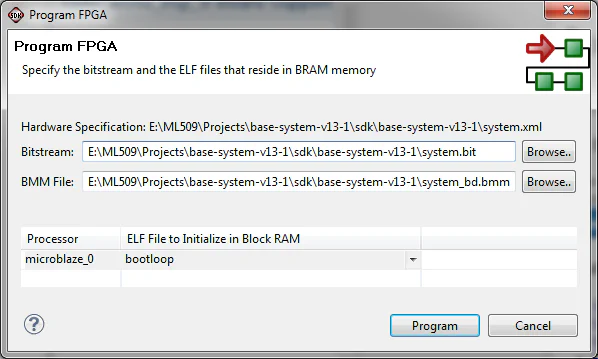
}
empty_application_0 and from the menu, select “Run->Run”.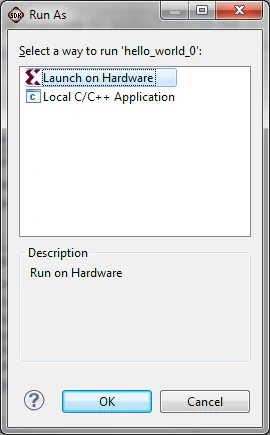
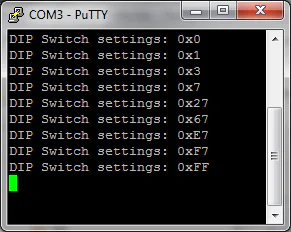
Now you should have a good idea about the SDK and how to use it to write software applications and run them on your FPGA board. In future tutorials, I will show you different C applications and go into detail about what the application actually does, rather than going through every step covered in this tutorial.