Title here
Summary here


Using a Raspberry Pi camera
July 12, 202312 minutes

In this post we’re going to build a smart camera using a Raspberry Pi camera, the ZCU104 board and PetaLinux. We’re going to do this by leveraging the Smartcam app which was originally designed for the AMD Xilinx Kria SoM. Our version of the Smartcam app can take video inputs from a Raspberry Pi camera, a USB camera or a file, and it can output video to a DisplayPort monitor, a file or via Ethernet over Real-time Transport Protocol. The application can run three different AI models:
Densebox_640_360)ssd_adas_pruned_0_95)refinedet_pruned_0_96)All of the code and scripts for this is hosted on two Github repos: Camera FMC Vitis Platforms Git repo and Smartcam Git repo.
It is possible to build this design for the
ZCU106 board if you prefer. To do so, follow the same
instructions, but replace the zcu104 references with zcu106.
You can use a Windows PC for some of these steps, however if you want to build the platform, overlay and PetaLinux you will need a Linux PC for that. If you don’t have a Linux PC, you can skip the build process and use the pre-built files.
You’ll need to plug a Raspberry Pi camera v2 into the CAM1 port of the RPi Camera FMC.
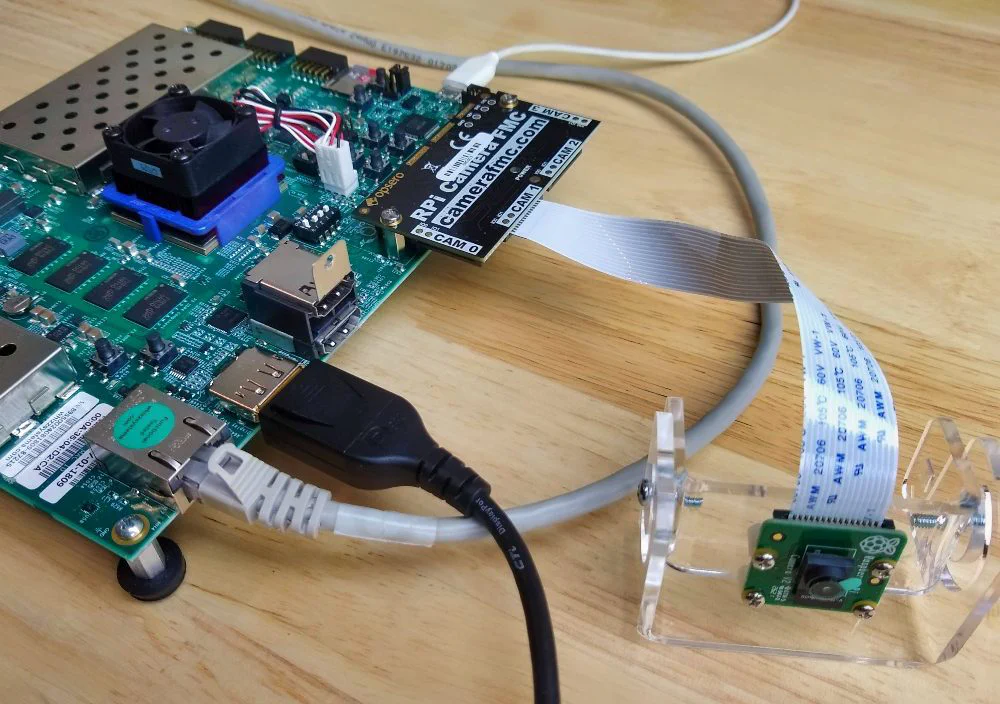
We’re going to build the platform using a PC running Ubuntu 20.04 LTS, but you can use a different version of Ubuntu, or even Red Hat or CentOS, as long as it is one of the supported OSes of PetaLinux 2022.1.
You will need to have Vitis and PetaLinux 2022.1 installed on your machine. If you need some guidance to installing Vitis and PetaLinux, I’ve written a guide to installing the older version 2020.1 here. In that post we installed it onto a virtual machine, but for this post I highly recommend using a dedicated machine if you can because it’s quite a big project and the build time can be extremely long on a VM.
In this step we will build the platform, overlay and PetaLinux project to run the Smartcam application. This is done on our Linux PC, which is ideally a physical machine (as opposed to a virtual one) with lots of RAM because the design is big and takes a while to build.
If you prefer to skip the build process and instead use the pre-built boot files, you can download them from the links below and then skip to the next step ( Prepare the SD card for PetaLinux):
These steps are performed on the Linux PC:
--recursive option.git clone --recursive https://github.com/fpgadeveloper/camera-fmc-vitis-platforms.git
2. Source the Vitis and PetaLinux 2022.1 setup scripts:
   ```bash
   source <path-to-xilinx-tools>/Vivado/2022.1/settings64.sh
source <path-to-petalinux-tools>/2022.1/settings.shcd camera-fmc-vitis-platforms/zcu104
make petalinux OVERLAY=smartcamThe build process takes a long time. On my best PC it takes about 2-3 hours in total. While you wait, you can start preparing the SD card as described below.
The PetaLinux project that we just built is configured to boot from the SD card, and to store the root filesystem on the SD card. So we need to create two partitions on the SD card: one for the boot files and another for the root file system. We then need to copy the boot files and root file system to the corresponding partitions.
dmesg command. The SD card should be found at the
end of the log, and it’s device name should be something like /dev/sdX, where X is a letter such as a,b,c,d, etc. Note that
you should replace the X in the following instructions.fdisk by typing the command (replace sdX with the correct device name):sudo fdisk /dev/sdX
3. Make the `boot` partition: type `n` to create a new partition, then type `p` to make it primary, then use the default
partition number and first sector. For the last sector, type `+1G` to allocate 1GB to this partition.

4. Make the `boot` partition bootable by typing `a`

5. Make the `root` partition: typing `n` to create a new partition, then type `p` to make it primary, then use the default
partition number, first sector and last sector.

6. Save the partition table by typing `w`

7. Format the `boot` partition (FAT32) by typing:
   ```bash
sudo mkfs.vfat -F 32 -n boot /dev/sdX1root partition (ext4) by typing:sudo mkfs.ext4 -L root /dev/sdX2
9. This step can only be done once the build has completed. Copy the boot files to the `boot` partition of the SD
   card: Assuming the boot partition was mounted to `/media/user/boot`, follow these instructions:
   ```bash
   cd /media/user/boot/
   sudo cp <git-repo-path>/zcu104/petalinux/zcu104_rpiMipiRx_vcu_DP/images/linux/BOOT.BIN .
   sudo cp <git-repo-path>/zcu104/petalinux/zcu104_rpiMipiRx_vcu_DP/images/linux/boot.scr .
   sudo cp <git-repo-path>/zcu104/petalinux/zcu104_rpiMipiRx_vcu_DP/images/linux/image.ub .
   sudo cp <git-repo-path>/zcu104/overlays/examples/smartcam/binary_container_1/dpu.xclbin .
If you’re using the pre-built boot files, the relevant files are in the boot folder; just copy them over.
rootfs.tar.gz file to the root partition. Assuming the root partition was
mounted to /media/user/root, follow these instructions:cd /media/user/root/
sudo cp <git-repo-path>/zcu104/petalinux/zcu104_rpiMipiRx_vcu_DP/images/linux/rootfs.tar.gz .
sudo tar xvf rootfs.tar.gz -C .
syncrootfs.tar.gz file is in the root folder, so just copy it over
and extract it.Once the sync command returns, you will be able to eject the SD card from the machine and plug it into the ZCU104.
Once the SD card is loaded with the PetaLinux image that we just built, we can plug it into the ZCU104 and power up the board. On the USB-UART terminal of your PC, you should see the output of the PetaLinux boot sequence. After some time, you should also see the simple desktop environment/GUI appearing on the DisplayPort monitor.
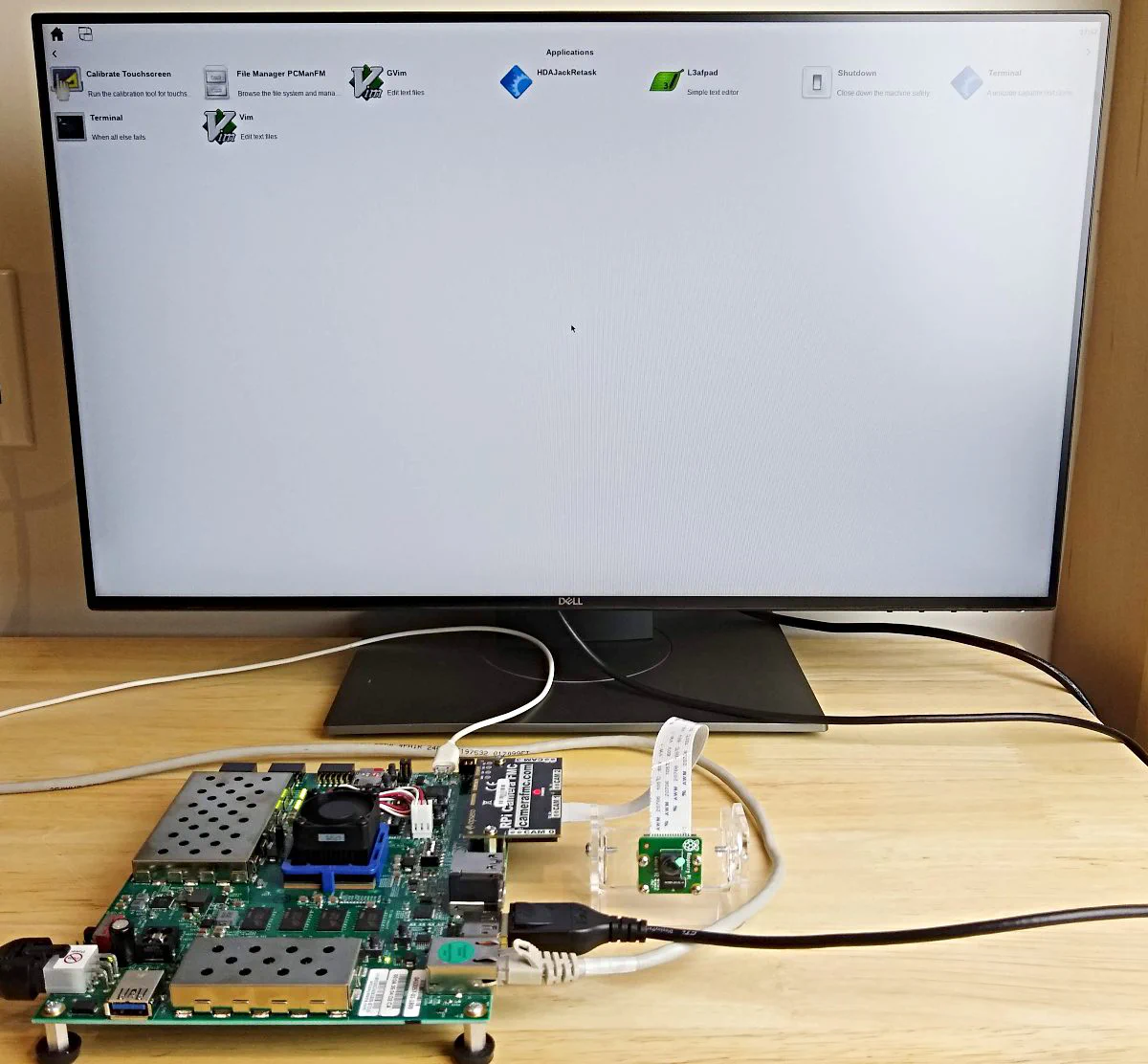
We’ll use the USB-UART terminal for the following steps.
The login should appear on the USB-UART terminal as shown below:
PetaLinux 2022.1_release_S04190222 zcu104rpiMipiRxvcuDP20221 ttyPS0

zcu104rpiMipiRxvcuDP20221 login:
Enter the user name petalinux and you will immediately be asked to set the password. You will do this only once, on the
first time that PetaLinux is booted.
First let’s check that the Raspberry Pi camera has been found and enumerated correctly by PetaLinux. When you run the command
v4l2-ctl --list-devices, it should output the following:
zcu104rpiMipiRxvcuDP20221:~$ v4l2-ctl --list-devices
vcap_raspi_pipeline_v_proc_ss_0 (platform:vcap_raspi_pipeline_v_):
        /dev/video0

Xilinx Video Composite Device (platform:xilinx-video):
        /dev/media0
The Raspberry Pi camera connected to the CAM1 port should be associated with /dev/video0 and /dev/media0. If you have
also plugged a USB camera into the ZCU104 board, then this may not be the case.
Now let’s disable the desktop environment so that GStreamer can take over the monitor. After running this command, the GUI screen should disappear.
sudo systemctl isolate multi-user.targetNow run GStreamer targetting the camera on the CAM1 port of the RPi Camera FMC. After you run the following command,
you should see the video stream from the first Raspberry Pi camera appearing on the monitor. To quit, just press Ctrl-C.
gst-launch-1.0 mediasrcbin media-device=/dev/media0 v4l2src0::io-mode=mmap ! "video/x-raw, width=1920, height=1080, format=NV12, framerate=30/1" ! kmssink plane-id=39 fullscreen-overlay=true -vIf you want to return to the desktop environment, you can use this command:
sudo systemctl isolate graphical.targetNow we are going to clone the Smartcam source code and build it in PetaLinux. Then we’ll install the build products and run the application:
sudo dnf install packagegroup-petalinux-vvas
sudo dnf install packagegroup-petalinux-vvas-devgit clone https://github.com/fpgadeveloper/smartcam -b xlnx_rel_v2022.13. Build the app:
```bash
cd smartcam
mkdir -p build/install
cd build
cmake ../ -DCMAKE_INSTALL_PREFIX:PATH=/ ; make; make DESTDIR=./install installsudo cp -r install/* /
export PATH="/opt/xilinx/kv260-smartcam/bin:$PATH"
export LD_LIBRARY_PATH="${LD_LIBRARY_PATH}:/opt/xilinx/kv260-smartcam/lib"dpu.xclbin to /usr/lib. The Smartcam app expects to find it there.sudo cp /run/media/mmcblk0p1/dpu.xclbin /usr/lib/.6. Run the app.
```bash
sudo systemctl isolate multi-user.target
sudo mount /dev/mmcblk0p1 /run/media/mmcblk0p1
sudo smartcam --mipi -W 1920 -H 1080 --target dp --aitask ssdNotice that we disabled the GUI and mounted the SD card’s FAT32 partition before running the application. The reason that we mounted the SD card is explained in the following section ( Troubleshooting).
The terminal output should be as follows:
zcu104rpiMipiRxvcuDP20221:~$ sudo smartcam --mipi -W 1920 -H 1080 --target dp --aitask ssd
Resize: mean_r=123.000000
Resize: mean_g=117.000000
Resize: mean_b=104.000000
Resize: scale_r=1.000000
Resize: scale_g=1.000000
Resize: scale_b=1.000000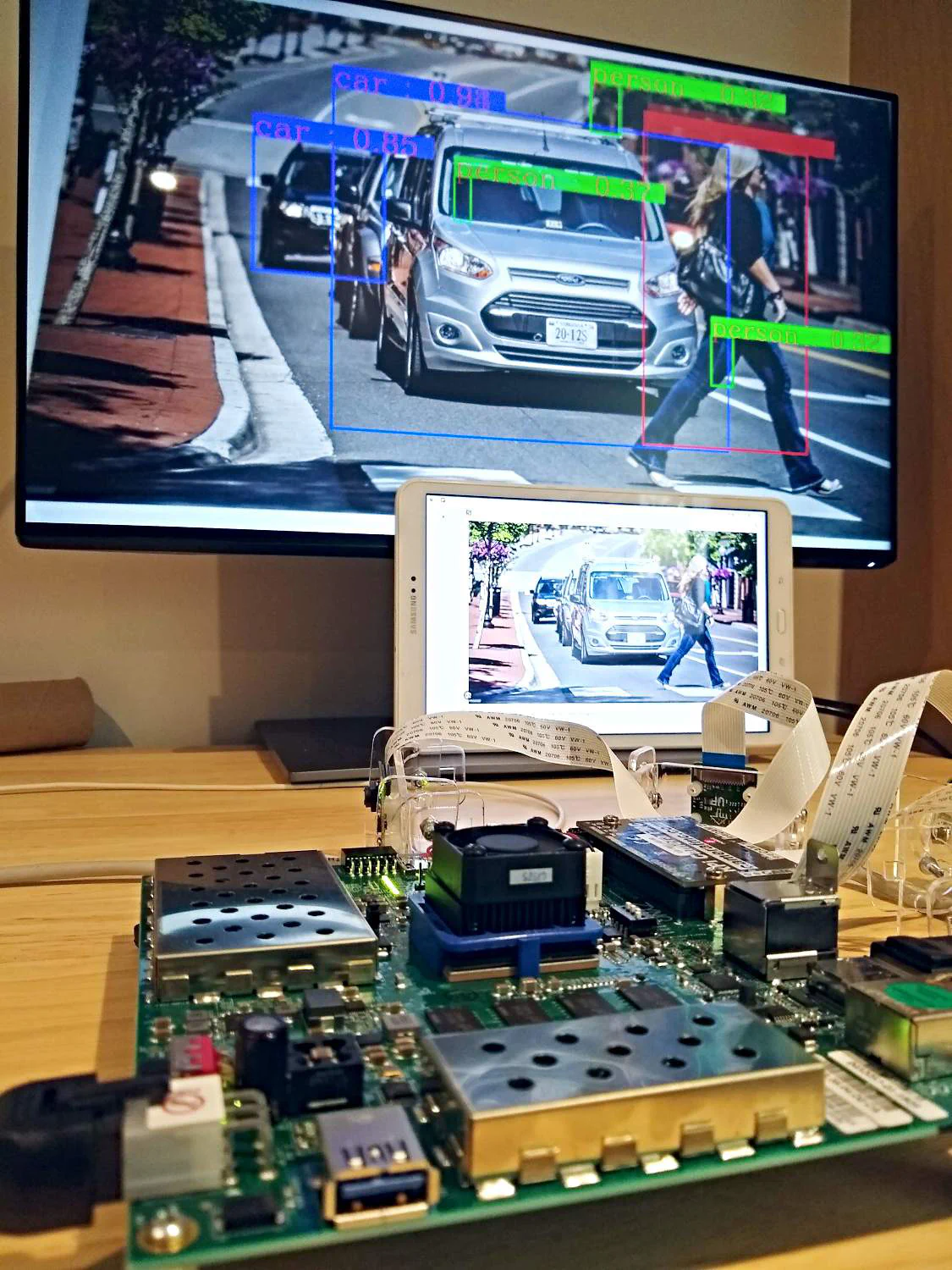
When the app is running, you should see a video stream from the Raspberry Pi camera appearing on the monitor. We ran the
ssd task for detecting cars, bicycles and people, so try pointing your camera at the street (if you can) or just put a street
photo in front of the camera. Change the --aitask option to run a different AI model:
| AI task | Network Model | Description |
|---|---|---|
facedetect | Densebox_640_360 | Face detection |
ssd | ssd_adas_pruned_0_95 | Single-shot Detector for cars, bicycles and people |
refinedet | refinedet_pruned_0_96 | Single-Shot Refinement Neural Network for pedestrian detection |
To see all of the command line options, just type smartcam -h:
zcu104rpiMipiRxvcuDP20221:~$ smartcam -h
Usage:
  smartcam [OPTION?] - Application for facedetion detction on SoM board of Xilinx.

Help Options:
  -h, --help                        Show help options
  --help-all                        Show all help options
  --help-gst                        Show GStreamer Options

Application Options:
  -m, --mipi=                       use MIPI camera as input source, auto detect, fail if no mipi connected
  -u, --usb=media ID                usb camera media device id, e.g. 0 for /dev/media0
  -f, --file=file path              location of h26x file as input
  -i, --infile-type=h264            input file type: [h264 | h265]
  -W, --width=1920                  resolution w of the input
  -H, --height=1080                 resolution h of the input
  -r, --framerate=30                framerate of the input
  -t, --target=dp                   [dp|rtsp|file]
  -o, --outmedia-type=h264          output file type: [h264 | h265]
  -p, --port=554                    Port to listen on (default: 554)
  -a, --aitask                      select AI task to be run: [facedetect|ssd|refinedet]
  -n, --nodet                       no AI inference
  -A, --audio                       RTSP with I2S audio
  -R, --report                      report fps
  -s, --screenfps                   display fps on screen, notice this will cause performance degradation
  --ROI-off                         turn off ROI
  --control-rate=low-latency        Encoder parameter control-rate
  --target-bitrate=3000             Encoder parameter target-bitrate
  --gop-length=60                   Encoder parameter gop-length
  --profile                         Encoder parameter profile.
  --level                           Encoder parameter level
  --tier                            Encoder parameter tier
--encodeEnhancedParam String for fully customizing the encoder in the form "param1=val1, param2=val2,...", where paramn is the name of the encoder parameterIf you ever see the following error messages, you need to remount the SD card’s boot partition and here’s why.
The dpu.xclbin file for this project is kept on the boot partition of the SD card. That partition is normally mounted to
/run/media/mmcblk0p1, but for reasons that I have yet to understand, the partition is intermittently unmounted. This
leaves the application without access to dpu.xclbin causing the following error message:
zcu104rpiMipiRxvcuDP20221:~$ sudo smartcam --mipi -W 1920 -H 1080 --target dp
Resize: mean_r=123.000000
Resize: mean_g=117.000000
Resize: mean_b=104.000000
Resize: scale_r=1.000000
Resize: scale_g=1.000000
Resize: scale_b=1.000000
WARNING: Logging before InitGoogleLogging() is written to STDERR
F0712 18:27:57.880172  8822 xrt_bin_stream.cpp:60] Check failed: fd_ > 0 (-1 vs. 0) , open(/run/media/mmcblk0p1/dpu.xclbin) failed.
*** Check failure stack trace: ***
Aborted
Another way to test for this problem is to run show_dpu:
zcu104rpiMipiRxvcuDP20221:~$ show_dpu
WARNING: Logging before InitGoogleLogging() is written to STDERR
F0704 18:41:21.971575  1111 xrt_bin_stream.cpp:60] Check failed: fd_ > 0 (-1 vs. 0) , open(/run/media/mmcblk0p1/dpu.xclbin) failed.
*** Check failure stack trace: ***
Aborted
This can be fixed by remounting the boot partition using this command:
sudo mount /dev/mmcblk0p1 /run/media/mmcblk0p1At this point you should be able to run show_dpu and smartcam without any problem.
If you run into this issue while trying to run Smartcam:
F0712 15:34:58.597152  1674 file_lock_lnx.cpp:28] Check failed: fd >= 0 (-1 vs. 0) cannot open file: /tmp/DPU_0
*** Check failure stack trace: ***
Aborted
Then you need to do this:
rm /tmp/DPU_0The summer holidays are on their way and I usually don’t get much done during that time, but here is what I expect to be working on and writing about in the coming weeks and months:
Have a great Wednesday!