Title here
Summary here


Clean install on a virtual machine
December 13, 20207 minutes
In this post we’re going to install PetaLinux 2020.1 from scratch on a virtual machine running Ubuntu 18.04.4 64-bit. The workstation on which I will be doing this has an Intel Xeon, 64GB RAM and 3TB HDD running Windows 10 64-bit. I’m assuming that your host machine is also running Windows.
Here are the main advantages to using PetaLinux on a virtual machine:
I recommend using the dynamic type of hard disk because the Xilinx tools use up a lot of space, BSPs can take up a couple of GB each, plus PetaLinux projects use up a lot of space typically, so it’s hard to know exactly how much space you will end up needing. If you go with a fixed size HDD, you can’t change it easily with VirtualBox, so I say go with the dynamic.
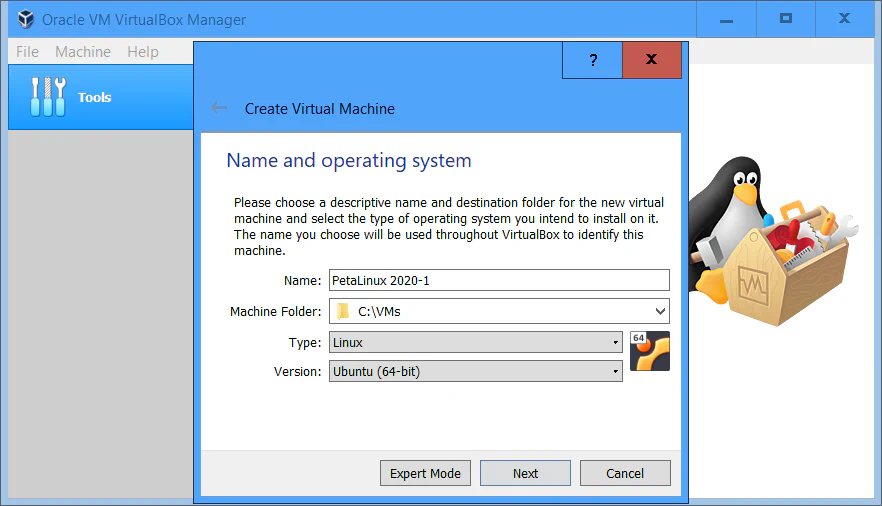
Before launching the VM, we need to have the Ubuntu installation boot disk (or at least the ISO). According to the PetaLinux 2020.1 reference guide, the latest supported Ubuntu release is 18.04.4 (64-bit), so that’s what we’ll install on our VM.
.iso file. Windows should automatically mount that ISO file to it’s own drive letter,
in my case F:. You will be able to refer to this drive letter to install Ubuntu on the VM.Back in VirtualBox, click on the VM we created earlier and click “Start”. You will be asked to select the drive letter of your Ubuntu installation disk. Select either your DVD drive letter, or the ISO file’s drive letter.
Ubuntu installer will run. Use these options:
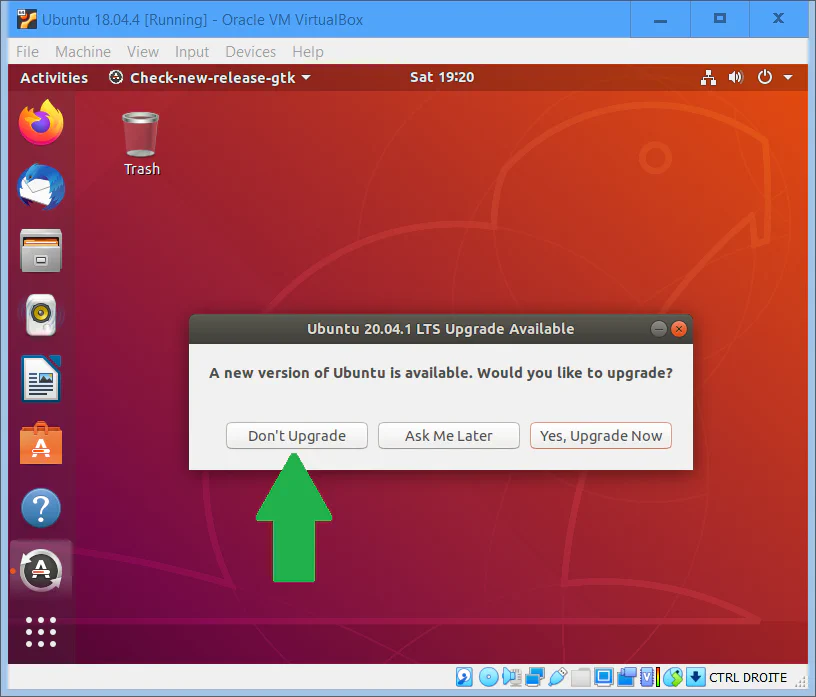
As PetaLinux requires Ubuntu 18.04.4 (and doesn’t support 18.04.5), we need to refuse the updates all the way through the install process and on the first boot.
After installation, you will be asked to reboot. If you used a DVD, the DVD will be automatically ejected from the drive. If you used the ISO file directly, it will ask you to remove the boot disk. To do this, open Windows Explorer, find the drive for the mounted ISO file, then right click on it and select “Eject”. The ISO will be unmounted and you will be able to continue the Ubuntu boot.
When Ubuntu has booted and you are logged in, it will tell you that Ubuntu 2020.04 is available
and ask if you want to install it. Be sure to refuse the update.
At this point I like to setup the VM so that I can share files from the host machine. The best way to do this is by using VirtualBox Guest Additions, which is software that needs to be installed on the VM after the OS.
This is a good point to install Vitis 2020.1 on the VM, although it’s not absolutely necessary so you can skip this step if you wont be needing it.
Xilinx_Unified_2020.1_0602_1208.tar.gz file will be in your ~/Downloads
directory. Assuming that it is in the ~/Downloads directory, extract the installer and then run it.tar xvzf ~/Downloads/Xilinx_Unified_2020.1_0602_1208.tar.gz -C ~/Downloads/.
cd ~/Downloads/Xilinx_Unified_2020.1_0602_1208/
./xsetupsudo apt-get -y install iproute2 \
gcc \
g++ \
net-tools \
libncurses5-dev \
zlib1g:i386 \
libssl-dev \
flex \
bison \
libselinux1 \
xterm \
autoconf \
libtool \
texinfo \
zlib1g-dev \
gcc-multilib \
build-essential \
screen \
pax \
gawk \
python3 \
python3-pexpect \
python3-pip \
python3-git \
python3-jinja2 \
xz-utils \
debianutils \
iputils-ping \
libegl1-mesa \
libsdl1.2-dev \
pylint3 \
cpio~/Downloads
directory and the following commands will assume that it is there.chmod +x ~/Downloads/petalinux-v2020.1-final-installer.runmkdir -p ~/petalinux/2020.1
~/Downloads/petalinux-v2020.1-final-installer.run -d ~/petalinux/2020.1Note that I’m installing PetaLinux into the “home” directory. This is because the User Guide specifies that “PetaLinux tools need to be installed as a non-root user”.
q to
close the agreement, then press y to accept the agreement.PetaLinux tools require that your host system /bin/sh be bash, which in Ubuntu it is dash.
chsh -s /bin/bash./bin/sh link to /bin/bash:sudo rm /bin/sh
sudo ln -s /bin/bash /bin/shNow you should be able to run the PetaLinux tools in a terminal with this command:
source ~/petalinux/2020.1/settings.sh. If all is good you can go ahead and delete the installers
for Vitis and PetaLinux (that will free up about 37.8GB):
rm ~/Downloads/Xilinx_Unified_2020.1_0602_1208.tar.gz
rm -r ~/Downloads/Xilinx_Unified_2020.1_0602_1208/
rm ~/Downloads/petalinux-v2020.1-final-installer.run
This is a good time to take a “snapshot” of your VM so that you can go back to a clean setup if ever it gets corrupted down the line.