Title here
Summary here


Guide to downloading and running Certified Ubuntu 20.04 LTS on the ZCU106 board
May 18, 20235 minutes

In this post we’re going to download the Certified Ubuntu 20.04 LTS image for the ZCU106 board and get it running on the hardware. This is a fairly simple post but I’ve got to write it up in preparation for future posts where we will dig deeper into this exciting new way of developing applications for Zynq UltraScale+ devices.
Here’s what you’ll need:
Start by downloading Ubuntu 20.04 LTS for ZCU10x. You will see that there is already a more recent version available (22.04), but in this post we will use the older version (20.04). At the time of writing, the newer version doesn’t yet have support for some of the interesting applications that we would like to test on it such as the Vitis AI Library Samples snap.
Once you’ve downloaded the file (iot-zcu10x-classic-desktop-2004-x07-20210728-85.img.xz) to your desktop PC , you will have to extract
the image file from it. If you’re using Windows, you would use 7-Zip to extract the image file. If you’re using Ubuntu, you can just right click on
the file and click “Extract Here”.
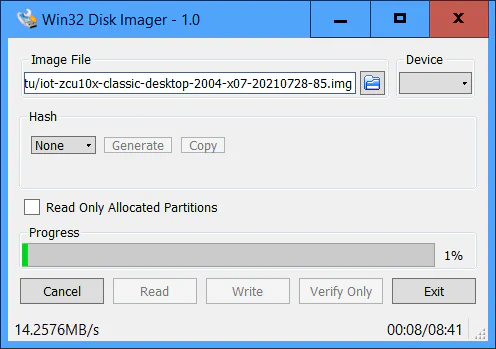
Now you need to apply that image file to your SD card. In Windows, I use Win32DiskImager. In Ubuntu, you would use Disk Image Writer. Make sure that your SD card is plugged in, and that you have correctly selected it as the target disk.
With the keyboard, mouse, DisplayPort monitor and Ethernet plugged into the ZCU106, insert the SD card into the slot
and power up the board.
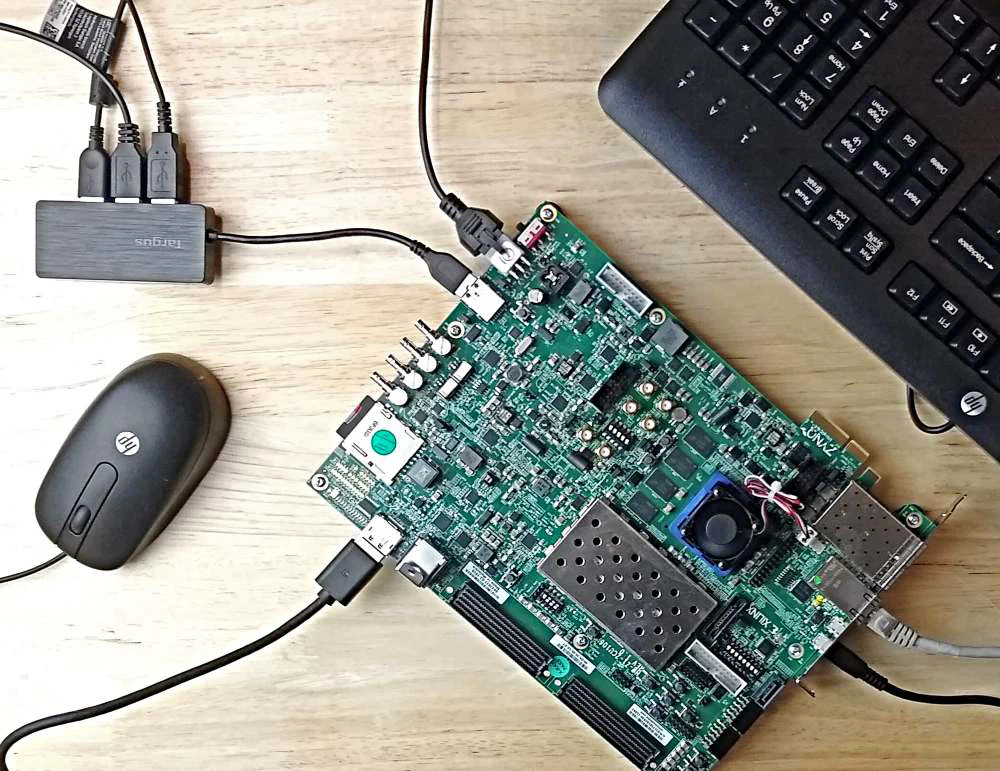
If you want to have a terminal interface to the board from your desktop PC, you can plug a USB cable into the USB-UART port (labelled “UART” on the PC mounting bracket, shown in the bottom right corner of the above image) and open a serial terminal set to the correct comport and the speed of 115200bps. You don’t have to do this if you intend to use the Ubuntu GUI.
After a minute or so you should see the Ubuntu login screen on the monitor. Login to Ubuntu using these credentials:
ubuntuubuntuYou should then be forced to change the password. The username will be the same.
Now let’s open a command terminal in Ubuntu. The easy way to do that is by pressing Ctrl-Alt-T. Alternatively you
can click the button in the bottom left corner of the screen (Show Applications) and then typing terminal in the
search bar.
With the terminal open, we want to make sure that the board has access to the internet. We can do this by running ping:
ping 8.8.8.8
If you can’t ping successfully with that, then you need to figure out what is wrong with your network connection and fix it, because we will need it to install the updates in the following steps.
You just got a fresh Ubuntu installation up and running. We should start things off by updating core utilities, but
if this is your first time booting, you’re probably going to get blocked by unattended-upgrades (more about that
here).
The automatic updater is likely to have a long queue of updates that it is
currently downloading and preparing in the background, and during that time it wont let you update things manually as we would like
to. So first what we want to do is to temporarily switch off unattended-upgrades, do our updates, install the rest of our tools
and then turn it back on when we are done.
unattended-upgrades (the automatic updater) by running the following command:sudo dpkg-reconfigure -plow unattended-upgrades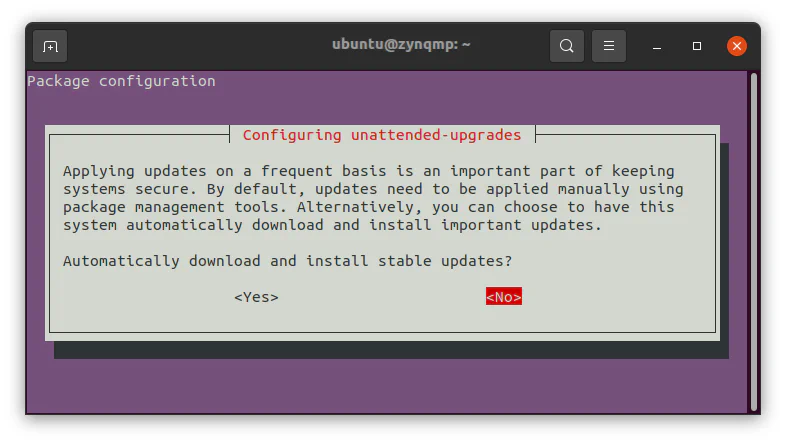
rebootCtrl-Alt-T) and update the system:sudo apt update
sudo apt -f install
sudo apt full-upgradexlnx-config snap:sudo snap install xlnx-config --classic --channel=1.xxlnx-config.sysinit command:sudo xlnx-config.sysinitunattended-upgrades back on. Select “Yes”.sudo dpkg-reconfigure -plow unattended-upgrades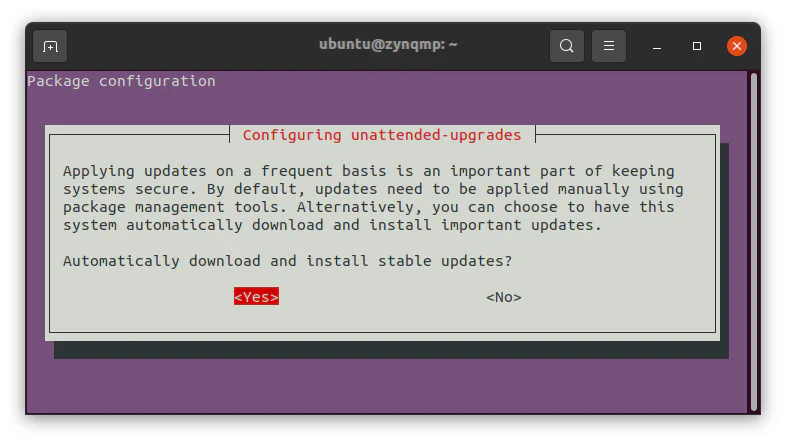
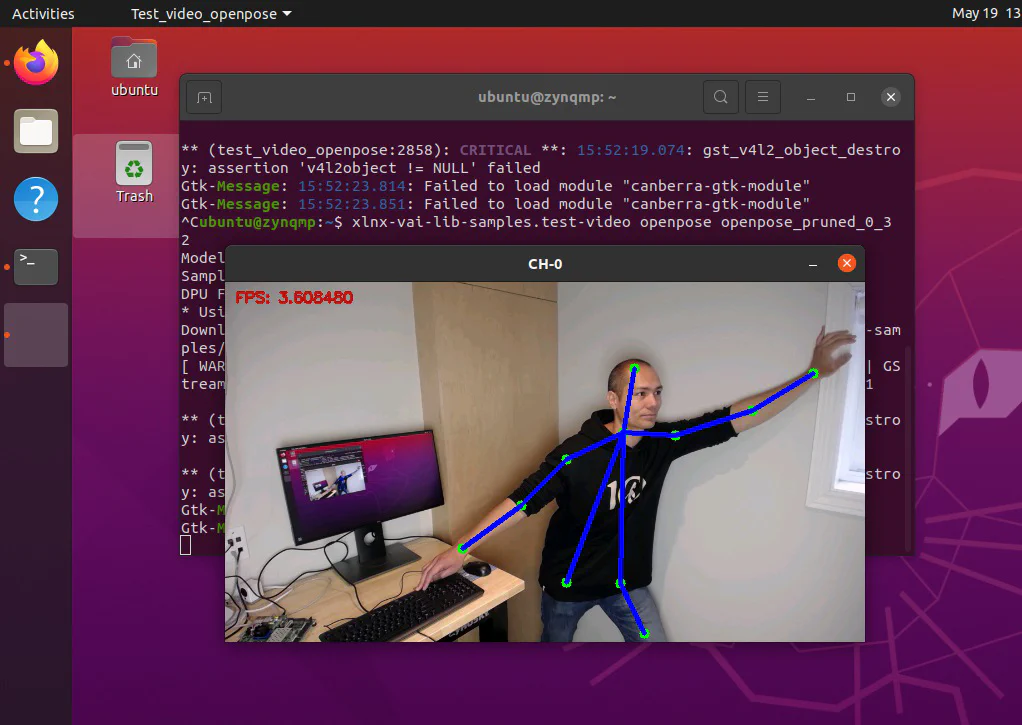
We’ve achieved the goal of this post for today, but if you want to have some fun with this, I suggest you take a look at the Vitis AI Library Sample Applications. Here are a few instructions to help you get started:
Ctrl-Alt-T.xlnx-vai-lib-samples snap like this:sudo snap install xlnx-vai-lib-samplesxlnx-vai-lib-samples.test-video openpose openpose_pruned_0_3 2Have fun!